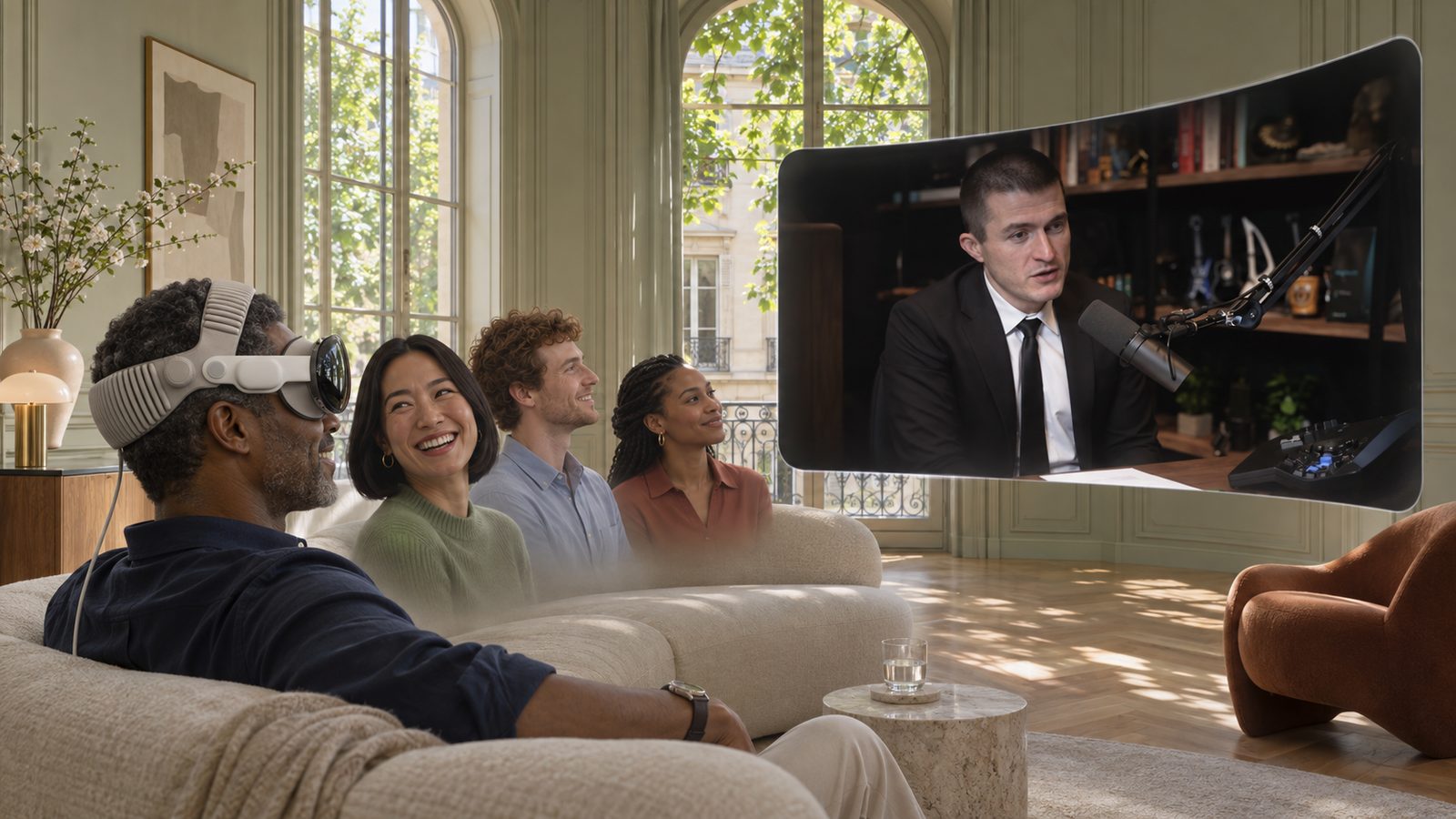
Your pods.
In your room.
Open The Pods in Meta Quest or Apple Vision Pro and any episode becomes a giant floating screen. No app store, no account. Free.
A screen the size of a wall.
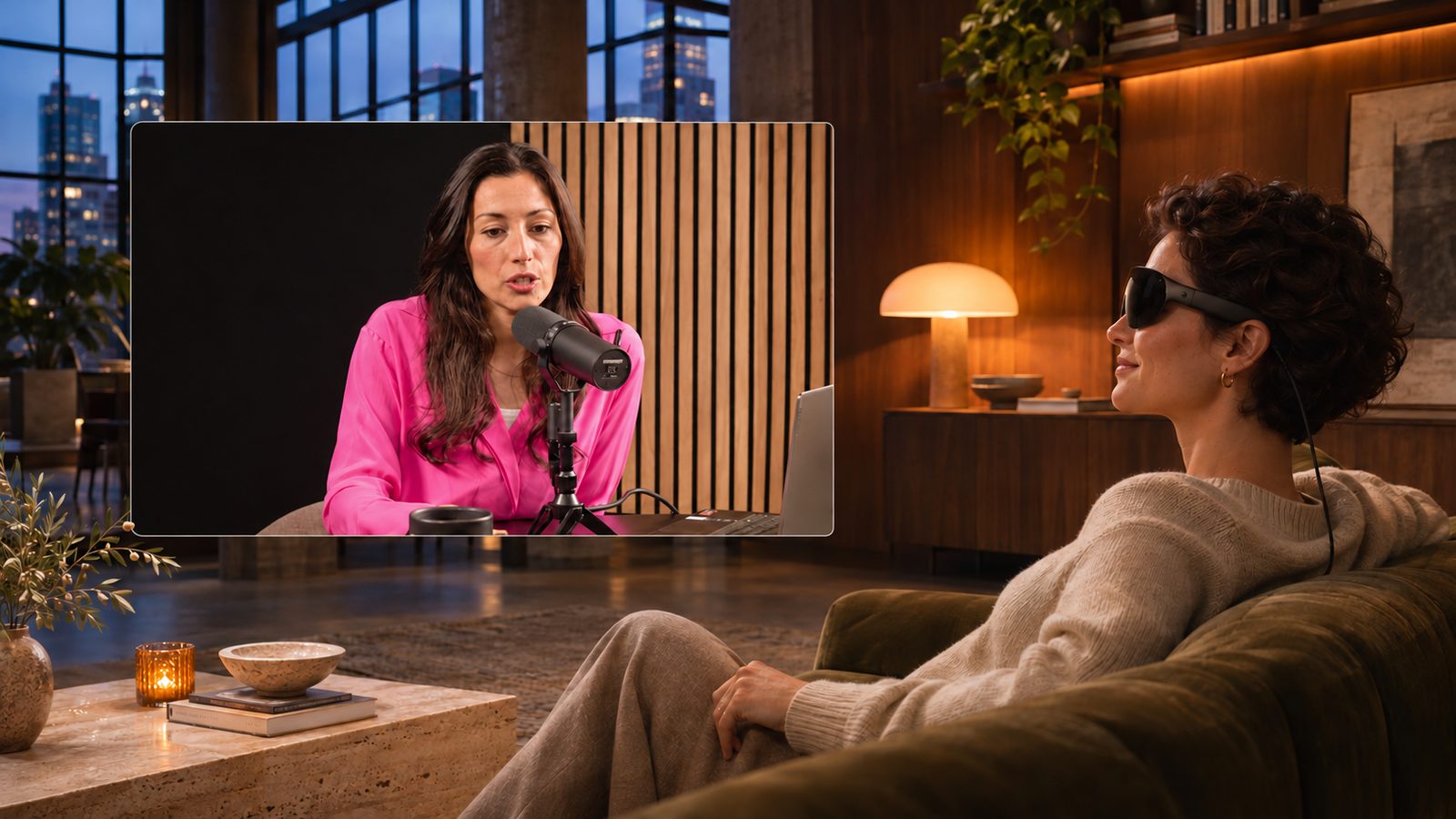
Theater mode turns on by itself in headset browsers: black room, the video as big as your field of view, controls you can hit with a controller or a glance.



Apple Vision Pro
A floating window you resize with a pinch. Full screen sends the video into an Environment.
- Open Safari, go to thepodatlas.com, pinch the window edge to make it as big as you like.
- Open an episode and press Theater (or T).
- Tap full screen on the video to watch it in an Environment on the native player.
- Share → Add to Home View to keep The Pods as an app.
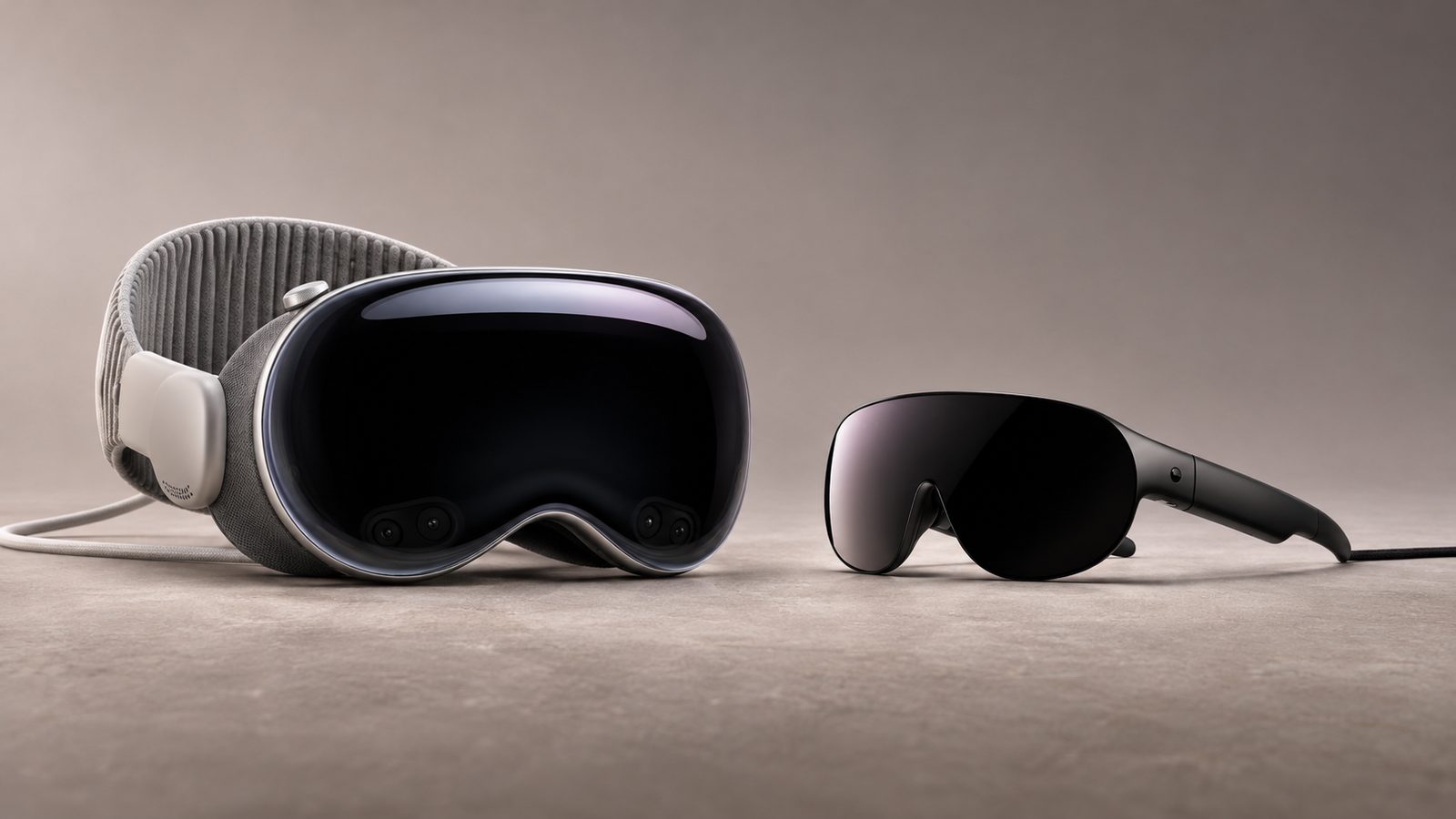
Meta Quest
Quest 2, 3, 3S and Pro. Theater mode starts the moment you open an episode.
- Open the Quest browser and go to thepodatlas.com.
- Open a pod, tap an episode.
- Browser menu → Install app to keep The Pods in your library.
- ‹ Previous / Next › under the video, or the episode list beside it.
Ray-Ban Meta glasses, earbuds, car
Audio pods play through the glasses. Tap to play or pause, double-tap for the next episode; title and artwork on your lock screen.
Options at a glance
| Feature | Meta Quest | Apple Vision Pro | Ray-Ban Meta glasses | Smart TV browser |
|---|---|---|---|---|
| Video pods on a giant screen | Yes | Yes | Audio only | Yes |
| Theater mode | Automatic | Button / T key | — | Automatic |
| Install as an app | Install app | Add to Home View | Via your phone | Bookmark |
| Previous / next episode | Yes | Yes | Double-tap (audio) | Yes |
| Subtitles | CC | CC | — | CC |
| Watch together | Yes | Yes | — | Yes |
| Audio pods with lock-screen controls | Yes | Yes | Yes | Yes |
| Hosts & guests, reviews, rankings | Yes | Yes | — | Yes |
| Immersive 3D cinema room | Coming next: a shared virtual cinema for Watch together | |||
YouTube video pods play through YouTube's own player, so the glasses' tap controls work for audio pods only.
Coming next: the cinema.
A shared room in VR where you and your friends sit in front of the same screen and react live.
Meta Quest and Ray-Ban Meta are trademarks of Meta Platforms, Inc.; Apple Vision Pro is a trademark of Apple Inc. The Pods is not affiliated with either company. Images are illustrations.